Web Client
Zellij can also work in the browser, allowing users to share existing sessions and start new ones. This is useful for easy and secure remote access, and can also allow users to forgo their terminal emulator entirely if they wish.
This is done through a built-in webserver (turned off by default) that provides built-in authentication and session-management.
For a detailed walk through, see the screencast.
How to start?
The web server can be started from the share plugin (accessible by default with Ctrl o + s):
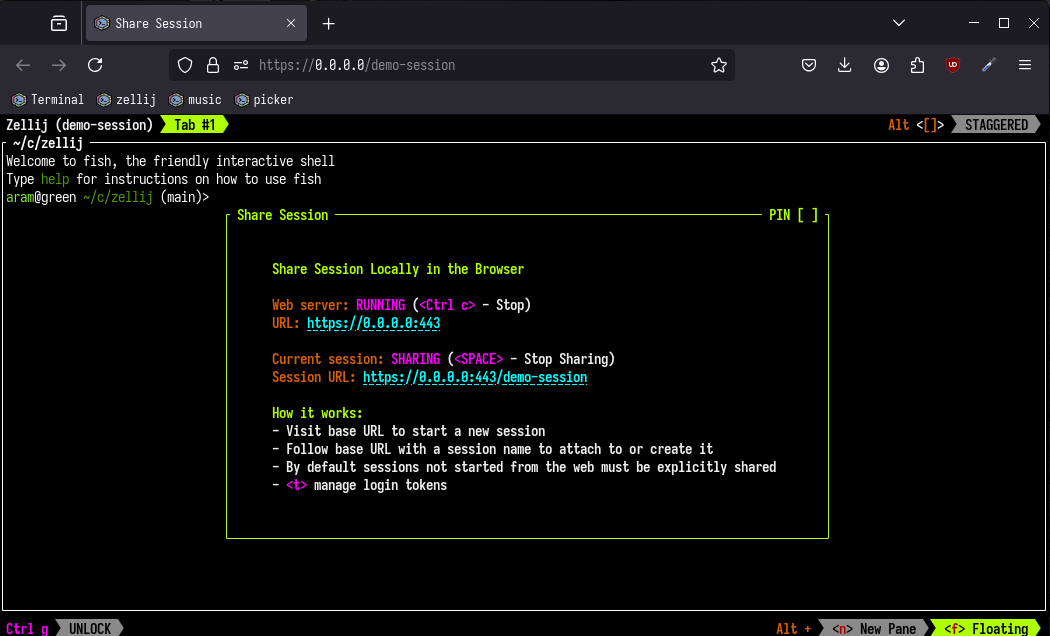
The web server can also be started from the CLI with:
$ zellij web
How to log-in?
For privacy and security, the Zellij web server requires users be authenticated before they can log in. To do this, one must create a "login-token". These tokens can be created from the "share" plugin (accessible by default with Ctrl o + s) or from the CLI:
zellij web --create-token
IMPORTANT: These tokens are hashed in a local database and so will only be displayed once. They cannot be retrieved, only revoked (either from the CLI or from the share plugin).
HTTPS?
The Zellij web server can work with a user provided SSL certificate to serve terminal sessions over an encrypted HTTPS connection. This is a hard requirement if listening on any interface that is not 127.0.0.1 but is very much recommended even when working on 127.0.0.1. (for more detailed instructions on how to do this, take a look at the screencast).
To set up an SSL certificate in the Zellij configuration:
web_server_cert "/path/to/my/certs/localhost+3.pem" // certificate
web_server_key "/path/to/my/certs/localhost+3-key.pem" // private key
URL scheme
By default, once started, the web server will listen on http://127.0.0.1:8082. When connecting to this address, users will be greeted with the welcome-screen, allowing them to start a new session, attach to an existing one or resurrect an exited one.
The web server works with a URL scheme, such that following the root URL with a session-name (eg. http://127.0.0.1:8082/my-amazing-session), will:
- Start a new session by this name if it does not exist
- Attach to this session if it exists
- Resurrect this session if it has exited
This means that if we bookmark this URL, we will be able to drop back in to exactly where we left off with this particular session - even if we've since shut down our machine completely.
Configuration
To configure the webserver, in the Zellij configuration:
web_server true // always start the web server on Zellij startup (default: false)
web_server_ip "0.0.0.0" // the IP to listen on, 0.0.0.0 is all (default: 127.0.0.1)
web_server_port 443 // the port to listen on (default: 8082)
web_server_cert "/path/to/my/certs/localhost+3.pem" // SSL certificate
web_server_key "/path/to/my/certs/localhost+3-key.pem" // SSL private key
enforce_https_on_localhost true // whether to enforce an https certificate being present also when listening on localhost (default: false)
base_url
The base_url option configures the base URL path for the web server. This is useful when running Zellij behind a reverse proxy that serves it under a subpath.
web_client {
    base_url "/zellij" // default: none (served at root "/")
}
When set, the web server will serve all content under this path prefix (e.g., https://my-server/zellij/my-session). See also options.
It's also possible to configure the browser terminal itself:
web_client {
  font "Iosevka Term" // default is "monospace" - deferring this decision to the browser/os
  cursor_blink true // default is false
  cursor_style "block" // possibilities: "block", "bar", "underline"
  cursor_inactive_style "outline" // possibilities: "outline", "block", "bar", "underline"
  mac_option_is_meta false // default is true
  theme {
    // NOTE: this is the theme of the terminal web client which is separate from Zellij's theme
    //
    // all values are optional and should be in the form of "r g b" (eg. 10 20 30)
    background 10 20 30
    foreground 10 20 30
    black 10 20 30
    blue 10 20 30
    bright_black 10 20 30
    bright_blue 10 20 30
    bright_cyan 10 20 30
    bright_green 10 20 30
    bright_magenta 10 20 30
    bright_red 10 20 30
    bright_white 10 20 30
    bright_yellow 10 20 30
    cursor 10 20 30
    cursor_accent 10 20 30
    cyan 10 20 30
    green 10 20 30
    magenta 10 20 30
    red 10 20 30
    white 10 20 30
    yellow 10 20 30
    selection_background 10 20 30
    selection_foreground 10 20 30
    selection_inactive_background 10 20 30
  }
}
Security Considerations and Recommendations
The Zellij web server is security and privacy conscious, enforcing HTTPS if accessed over the network and authentication at all times. It is however recommended to place the server behind a reverse proxy (such as nginx) if exposing it to an untrusted network (eg. the Internet). This is because the web server does not provide its own rate-limiting to mitigate denial of service and similar attacks.
In its security model, the web-server assumes that authenticated users are trusted. This is because the server can only serve terminal sessions of a single particular user on a single particular machine. This user by-definition has access to start/stop the web server itself, as well as access sensitive information on the machine by nature of this being a terminal session.
The web server only saves session-tokens (not the actual log-in tokens) in the browser as cookies, preventing javascript access to them and instead relying on http headers to authenticate them on the server side. Whenever an authentication token is revoked, all of its associated session tokens are revoked as well.
Remote Terminal Attach
In addition to browser-based access, Zellij sessions can be attached remotely from another terminal using zellij attach with an HTTPS URL:
$ zellij attach https://my-server:8082/my-session
This connects to the remote Zellij web server and attaches to the specified session directly in the local terminal, without requiring a browser. Authentication is required via the --token flag:
$ zellij attach https://my-server:8082/my-session --token <login-token>
Use --remember to save the credentials locally for 4 weeks (avoiding repeated token entry):
$ zellij attach https://my-server:8082/my-session --token <login-token> --remember
Use --forget to clear previously saved credentials for a remote server:
$ zellij attach https://my-server:8082 --forget
A custom CA certificate can be specified with --ca-cert:
$ zellij attach https://my-server:8082/my-session --ca-cert /path/to/ca.pem
Self-Signed Certificates
Self-signed certificates are rejected by default. To connect to a server using a self-signed certificate, the --insecure flag must be passed:
$ zellij attach https://my-server:8082/my-session --insecure
WARNING: The --insecure flag skips TLS certificate validation entirely. It should only be used for development or in trusted network environments.
Read-Only Tokens
In addition to regular login tokens, read-only tokens can be created. Users authenticating with a read-only token can view sessions but cannot send input or interact with them.
Read-only tokens can be created from the CLI:
$ zellij web --create-read-only-token
Or with an optional name:
$ zellij web --create-read-only-token --token-name "observer-token"
Read-only tokens are managed in the same way as regular tokens - they can be listed with --list-tokens and revoked with --revoke-token.
Server Status
The status of the Zellij web server can be queried from the CLI:
$ zellij web --status
This reports whether the server is online or offline, and if online, the base URL it is listening on.
Optional flags:
--timeout <seconds>- Timeout in seconds for the status check (default: 30)--ip <IP>- IP address to check (defaults to the configured address)--port <PORT>- Port to check (defaults to the configured port)
$ zellij web --status --timeout 5 --ip 0.0.0.0 --port 443
Installing as an app (PWA)
The web client is a Progressive Web App: it serves a web manifest, icons and the relevant iOS meta tags, and so can be installed as a standalone application from Chromium-based browsers, Firefox, Safari and iOS.
Once installed, it opens in its own window without browser chrome. This works behind a reverse proxy as well, including when the client is served under a base_url prefix. There is nothing to configure.
Mobile Support
The web client detects mobile browsers (through a coarse pointer and user-agent detection) and switches to a dedicated mobile interface automatically. There is nothing to configure.
The mobile interface includes:
- Viewport Resizing: The terminal automatically resizes to match the real mobile viewport, accounting for dynamic changes such as the address bar showing/hiding and the on-screen keyboard appearing/disappearing.
- Touch Scroll: Vertical touch swipes are converted to terminal scroll events, allowing natural scrolling through terminal output.
- Touch chrome: touch-friendly UI controls replacing the keyboard-driven ones.
- Pane and tab pickers: for switching between panes and tabs without keybindings.
- On-screen keyboard: including keys that physical mobile keyboards lack (this can also be shown and hidden by plugins).
- Panning and a fit toggle: to move around a session larger than the screen, or to fit it to the screen.
- Single pane fullscreen: focusing on one pane at a time, which is often the only practical layout on a phone.
- Light theme support: following the device color scheme.
- Welcome screen: rendered client-side when connecting without an existing session.
This feature can optionally be disabled at compile-time
For those who are averse to this feature (even when it's disabled - which is the default), Zellij can be compiled completely without this feature or its dependencies by removing the web-server-capability compile-time flag. For convenience, Zellij also provides an additional pre-built binary compiled without this flag called zellij-no-web.