
Use Zellij to manage multiple coding agents across multiple sessions.
2026-11-10If you use coding agents, Zellij provides with a good agent-agnostic solution for managing many different ones, working on joint or separate tasks, in one screen that integrates with your desktop tray and notification system and works out of the box.
If you haven’t done so already, it’s a good idea to briefly familiarize yourself with the Zellij terminal. Agents can also be managed inside the multiplexer as well without using the desktop terminal, but then notifications depend on support from your outer terminal.
What we’ll cover
- The Session Manager
- Labelling Agents
- Starting Multiple Agents
- Working Across Sessions
- Managing Agents from the Inbox
- Do you like Zellij? ❤️
The Session Manager
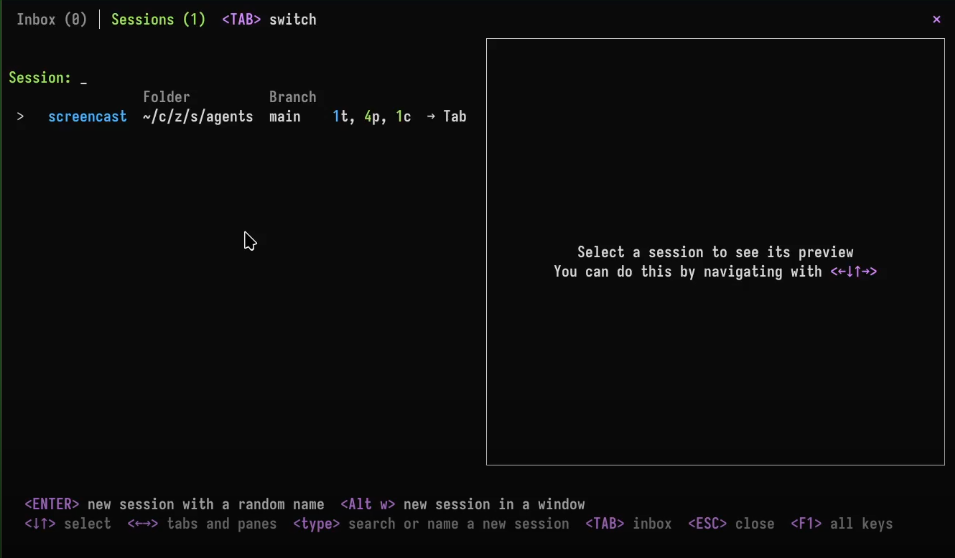
Start the session manager from the tray-icon by left-clicking on it, or from inside a Zellij session with Ctrl o + w (or Ctrl g + o + w in unlock-first mode). Here, start a new session by typing its name (for example, the name of a project you’re going to work on) and pressing Enter.
Labelling Agents
Some agent programs label themselves automatically, but if you want consistency it is recommended to change the name of the pane where the agent starts. So start an agent, give it a task and rename its pane with Ctrl p + c (or Ctrl g + p + c in unlock-first). Enter its label, and this label will follow it as you receive notifications.
Starting Multiple Agents
It is recommended to separate sessions by projects. So for example, if you have multiple agents running in parallel on the same projects, start them in different tabs of the same session.
Open a few more tabs with Ctrl t + n (or Ctrl g + t + n in unlock-first) and start a couple more agents. Optionally giving them labels as explained above.
Working Across Sessions
Close the window, allowing your agents to work in the background. While they are working, start a new session from the tray and give it the name of a second project. Start a few agents here in the same way.
Managing Agents from the Inbox
As the agents work, you can follow them along from the Inbox in the tray icon. You could also follow them along from any one of the sessions on the machine in the same way with Ctrl o + i (Ctrl g + o + i in unlock-first).
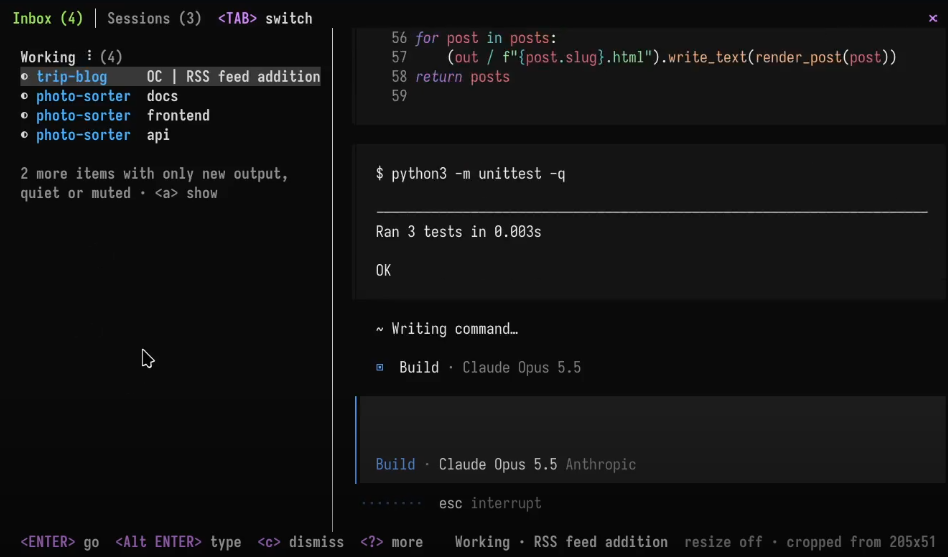
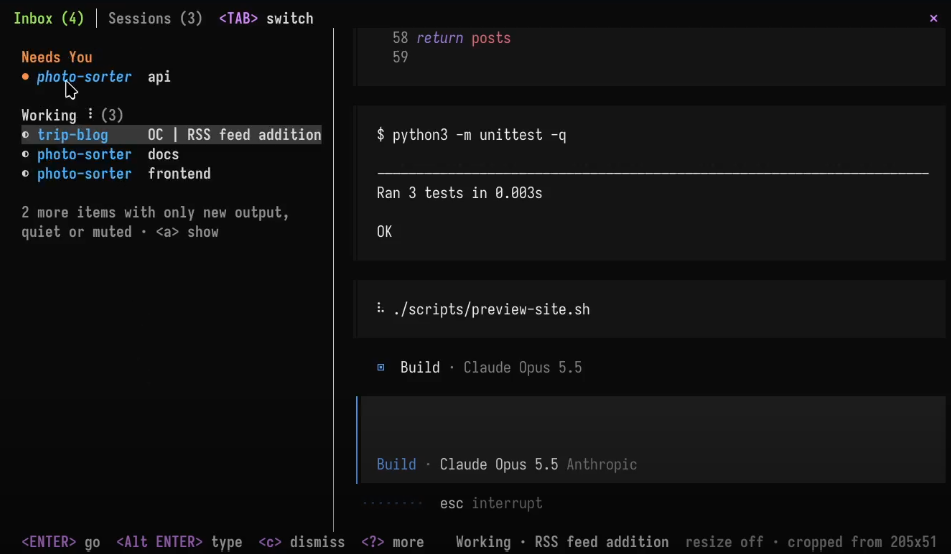
From the inbox, you are able to see what the agents are doing, sorted by their current status (eg. working, done, needs you, error).
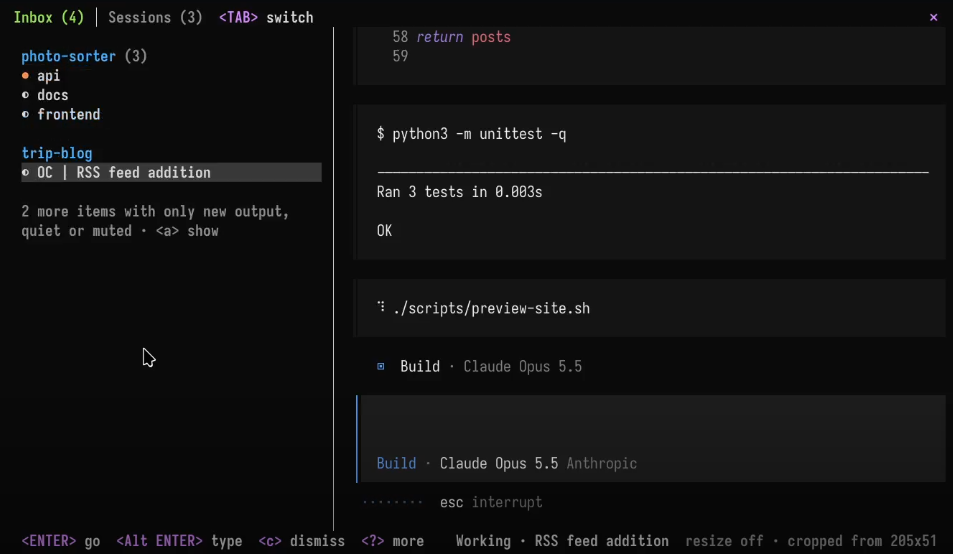
You can press ’s' to sort them by session, rather than status:
You can click any notification to open the relevant session, or you can quickly respond to one of them through the preview by pressing Alt Enter and typing into the preview (or clicking with the mouse).
To dismiss agents you are not interested in, press c on their entry, or mute them entirely with m.
Do you like Zellij? ❤️
Me too. So much so that I spend 100% of my time developing and maintaining it and have no other income.
Zellij will always be free and open-source. Zellij will never contain ads or collect your data.
If the tool gives you value and you are able, please consider a recurring monthly donation of 5-10$ to help me pay my bills. There are Zellij stickers in it for you!